
Hi everyone! Did you miss me last week? I know I missed you. Sorry about that – things got really busy all of a sudden! But, I’m back, and it’s time for the Silhouette Challenge Post! If you haven’t seen one of these before, it’s where several of us silhouette users set a challenge for 1 project a month. This month’s theme is paper! And boy, do I love my paper. We also did a card exchange in our group last month, which is a great paper project! Here’s the card I made:

I’ll show you how to make the whole card at the end of the post, but I want to talk first about one special technique I used. I created my own cut files to go with my stamps! It’s not too difficult to do and worked great for cutting out all those little bees and the path behind them. Ready to learn how to make your own custom outlines? Let’s get started! {Just want the free cut file for the card shapes? You can download it here. I’d love it if you followed me on one of my social media outlets!}

Step 1: Stamp and Scan
First, we need to get a version of your stamp into Studio that’s to scale. The easiest thing for me to do is to stamp it on a peice of paper and scan it. If you don’t have a scanner, you could also take a picture (making sure you’re taking it from directly above and straight on) and make note of the scale.

Step 2: Import and Scale
Next, import your image into your library by going to File-Import to My Library and then add it to your work space. Alternatively, you can drag and drop the image from your desktop onto the work space.

If it imports too big, don’t panic! You can re-size the image using the Object – Transform – Scale Options. This is where having the scale is useful. I happen to know that the width of my scanner is 8.5, so I can set the width of my image to match.

Step 3: Trace
We’re going to do a relatively simple trace here, since all we need is the outside. Use the selection box to create a box around the outside of the stamp. Turn of “High Pass Filter” and increase your threshold until all of your stamp is outlined. Then choose “Trace Outer Edge”.

Step 4: Offset
Ok, so the trace just gave us an outline that’s pretty close to exact on the stamp. We want a little bit of padding around the outside, just so that the stamp doesn’t have to be perfectly aligned. Select your stamp image and add an offset of .04 inches. This will be our cut line at the very end. (Note: See that extra interior line on the bee? If you get something like that, just select the line and choose Object Release Compound Path. This will let you delete the interior line.)

With the dotted line, it looked like all sorts of crazy circles overlapping at first, but after the offset it applied, these circles are automatically welded together by the program.


Step 5: Create an outline
A cut line is great, but we need something to tell us where to stamp. I’ll be using the print and cut feature to do this. At this stage, I delete the underlying picture, as it’s no longer needed.

Next, I create 2 more offset lines. Each .02 inches from the previous line. I’ve set these lines to have a line color of black for visual reference.

Now, select the black lines around the bee. This can be difficult to get just the black lines and not the red, but go ahead and use your zoom option to help. Go to Object – Make Compound Path and fill the resulting object with a black fill. Do the same for your other stamps. This will create a shape that will print in the next step.

Step 6: Place and Print
Before you print, make sure that you add in your registration marks. I made a small print area using the registration mark margins so that I didn’t waste the whole sheet. I also increased the thickness of the marks to 1mm. I find this helps the machine detect the marks better. If you’re having trouble with detection, you can also try to shine a light on the machine. Once you’re happy with your layout, go ahead and print it.

Step 7: Stamp and Color
Now we’ll be adding our stamp to the mix. Go ahead and stamp your image as close to center on the image as you can. If you plan to do any coloring, do it now. And don’t forget to make sure you’re using the right type of ink for your markers, or your stamp might bleed the way mine did!

Step 8: Cut
And we’re ready for the cut part of the print and cut! First, make sure you only have your cut lines set to cut, and not your outlines.

Set your paper setting to what works best with your paper (double cutting if necessary), and set your cut to go! Don’t forget to make sure it’s registering those marks right off the bat. If it’s not, hit the pause button to cancel the print. I find that if it’s not registering, turning the machine off and on resets it’s interaction with the program so it registers the second time around. Ready to see the results?


What a cute little bee!
Want to make the card I made?
Here’s a quick rundown of the card making process.

Materials: (Some of these links are affiliate links. Thanks for supporting my blog!)
Ink
Technique Tuesday Simply You stamps
Lawn Fawn Gnome Sweet Gnome stamps
Xyron sticker maker
Fiskers 4 stamp block set
Thermoweb XL tape runner
Pop dots (not shown)
Paper Source brush stroke orange paper
Paper Source brush stroke cream paper (2 pieces cut to 1.5″x3″)
Paper Source 4-bar card (lake)
Paper Source curry coverstock
Moxxie Perserverance paper {I used this for the envelope with my envelope punch board}
Scissors
Free Studio cut file – Do you like my free cut files? I’d love it if you followed me on one of my social media outlets!
First – prep and cut all your layered pieces. (Tip: for the paper source papers I used the following cut settings – Speed: 9, Thickness: 15, Blade:2 and a newish blade). Use the thermoweb tape for everything but the dotted line, for which I used the xyron sticker maker.


Then, everything is just layered. I used the thermoweb tape for everything but the bee and the saying. For those, I used pop dots to give it a bit of dimension. (Tip: add the tape to the card instead of to the softer paper when layering the fibrous paper onto the cardstock).

And add your stamps to the inside and back!


And did you catch my awesome custom stamp I purchased from RubberStamps.net? I’m really excited about it, and so happy with how it came out! I feel like I’m finally getting the hang of this branding thing.

Want to Check Out More Silhouette Projects?

My Silhouette Challenge buddies and I are all sharing projects on our blogs today, so peruse the projects below for a wealth of Silhouette inspiration!
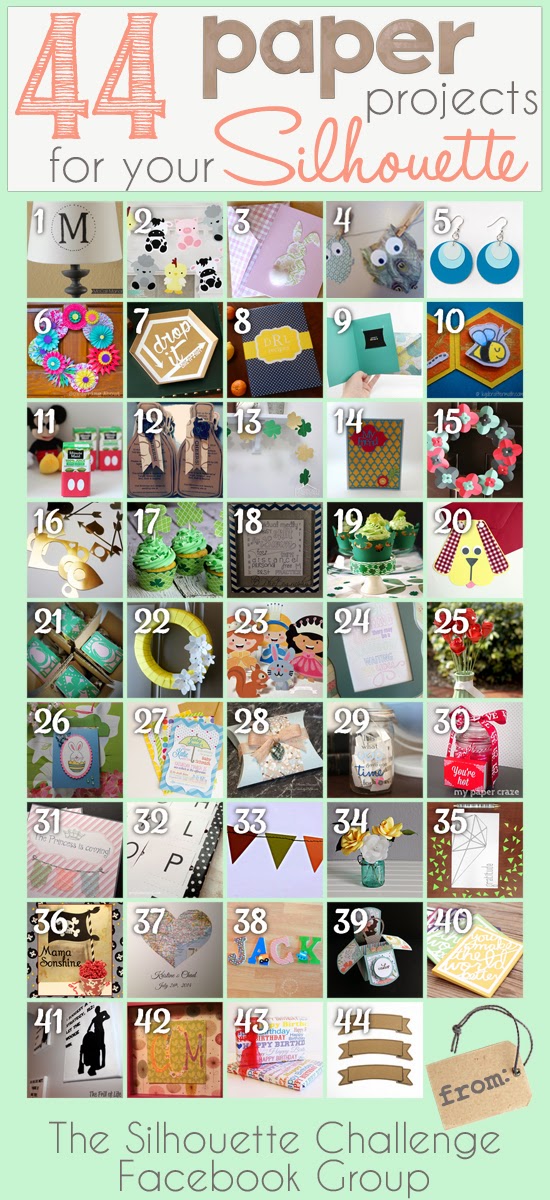
1. McCall Manor // 2. The Turquoise Home // 3. Creative Savings // 4. Sandpaper and Glue // 5. The Thinking Closet // 6. Sowdering About in Seattle // 7. Persia Lou // 8. From Wine to Whine // 9. Dream a Little Bigger // 10. Please Excuse My Craftermath… // 11. Play. Party. Pin. // 12. Everyday Paper // 13. Practically Functional // 14. A Tossed Salad Life // 15. My Favorite Finds // 16. The House on Hillbrook // 17. Adventures in All Things Food // 18. A Glimpse Into Barb’s Life // 19. TitiCrafty // 20. The Experimental Home // 21. feto soap blog // 22. Creative Ramblings // 23. The Stamp Doc // 24. Ginger Snap Crafts // 25. Simply Kelly Designs // 26. Whats Next Ma // 27. unOriginal Mom // 28. Bringing Creativity 2 Life // 29. Cutesy Crafts // 30. My Paper Craze // 31. Create & Babble // 32. Grey Luster Girl // 33. The Sensory Emporium // 34. Lil’ Mrs. Tori // 35. Black and White Obsession // 36. Mama Sonshine // 37. Weekend Craft // 38. Creative Carnival // 39. Peace, Love and Joyce // 40. Tried & True // 41. The Frill of Life // 42. Dragonfly & Lily Pads // 43. Get Silvered // 44. Minted Strawberry

I like to link up here.
Affiliate links help me keep this blog running. Thanks for using them!
All opinions expressed on this blog are always my own.
For more on this topic, check out my guide on comparing Silhouette and Cricut.